Creating an Ethereum EVM wallet with Metamask for PC
How to create free crypto wallet with Metamask wallet in 5 minutes. Get access to Ethereum
and 100+ other EVM blockchain networks. Full step by step tutorial!
Welcome! In this guide I'm going to show you how to create an Ethereum wallet with Metamask.
Prepare for wallet creation:
As of late 2023, Metamask is by far the best wallet for its features, ease of use and security. Having Metamask gets you access to Ethereum and hundreds of other EVM(Ethereum Virtual Machine) compatible blockchains. To put it simply, a Metamask cryptocurrency wallet is basically world wide bank account that can connect and interact with websites and applications.
One of the key differences between a traditional bank account and a cryptocurrency wallet lies in the custody of funds. Banks offer custody as a service, whereas cryptocurrency wallets require self-custody. Therefore when learning crypto from zero, its best to start out with secure wallet such as Metamask. So come on and lets get started. We are going to download Metamask software and write down couple of passwords.
- Small notebook to write down wallet log in password and recovery information
- A pen
Lets get started. We are going to download Metamask web browser extension wallet software.
We will use Metamask official website, so click here metamask.io or type it in browser URL address. Once you find yourself on the Metamask homepage, make sure to double check the URL. Double checking any website URL that offers financial services is a standard security procedure and should be trained to become an automatic habit. This habit will greatly reduce the risk of accidentally downloading malicious software or connecting your wallet to phishing scam attempting website.

Now once you’ve confirmed the matching URL, then click big blue download button.

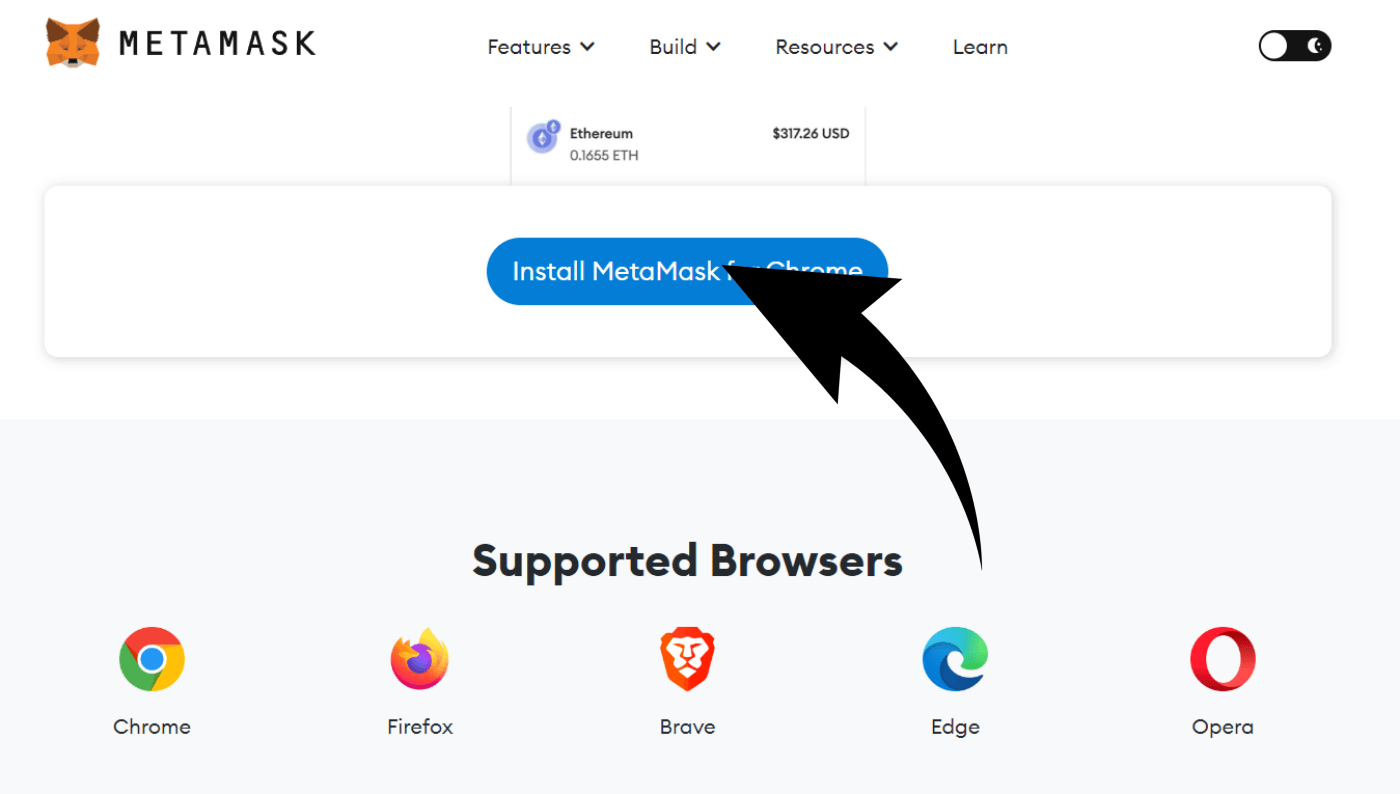
Once on the next page, we scroll down a bit until you find big “Install Metamask” button.
Metamask wallet is a web browser extension. It is available for Google Chrome, Mozilla Firefox, Brave, Microsoft Edge and Opera web browsers. Each of these browsers have their own official webstore for extensions and add-ons.
By clicking that “Install Metamask” button, we will be automatically directed to the correct official browser app store. In this guide, I am using Google Chrome. If you are using a different browser, then that’s completely fine. Depending on the browser that you use, the web app store only might look a bit different than Google Chrome’s, but everything else it the same.
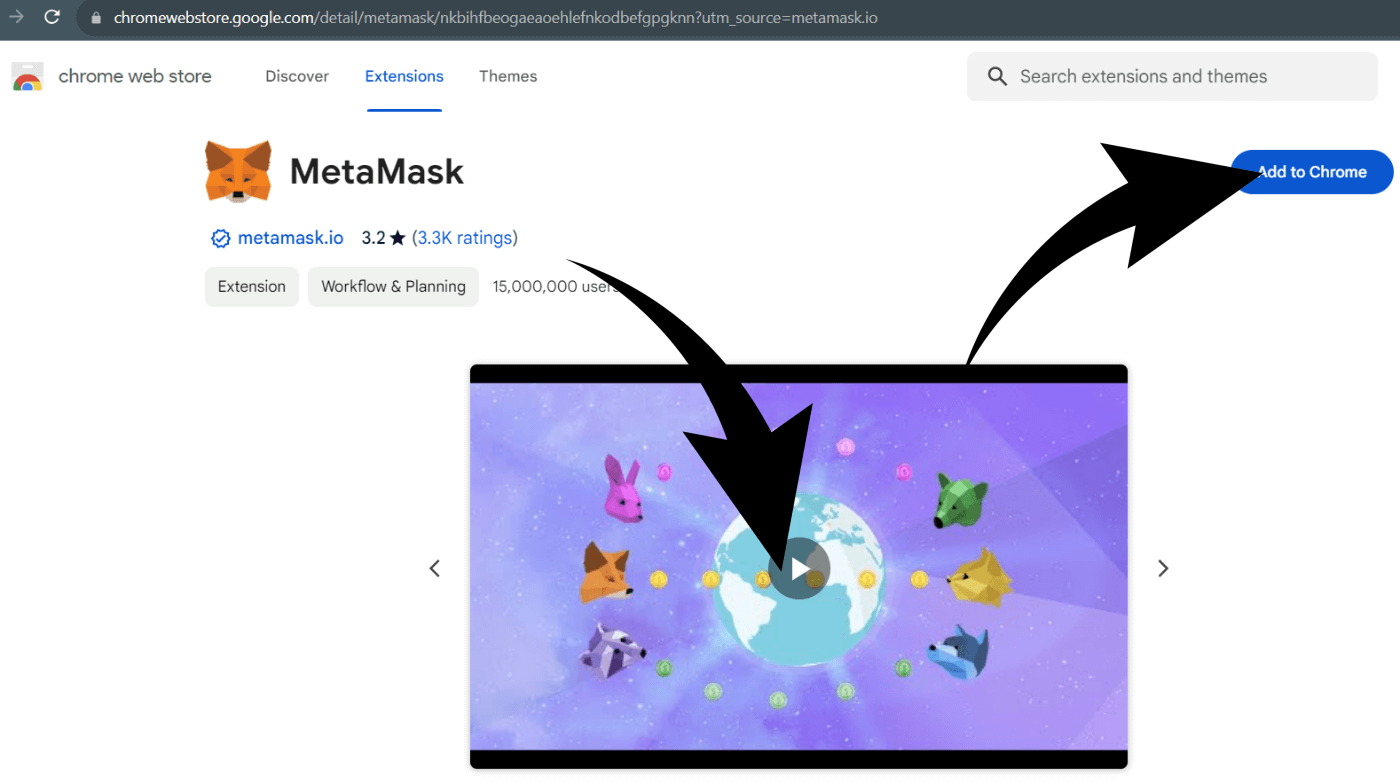
Now once we’ve been directed to the app webstore, there should be a 2 minute introduction video for Metamask. If you want to watch it, then I’ll recommend to watch it before proceeding the installation, or else the video gets interrupted if it downloads faster than the video takes.
Also, don’t be discouraged be the low 3.2 score rating in Google Chrome web store. Metamask is the gold standard for browser extension wallets. Whoever gave it very low rating probably did not take time to learn to use it. Don’t worry, once you’ve worked through all the tasks and lessons in this guide, you too will be advanced Metamask user.
Alright, once you’re ready to proceed with the installation, click “Add/download to your browser”.